Jul 22, 2026
How to Add Age Verification to Framer (No Code Required)

Many websites need a simple way to verify a visitor's age before granting access to their content. Whether you're selling alcohol, tobacco, CBD products, or publishing age-restricted material, an age verification popup helps you comply with regulations while providing a professional experience for your visitors.
In this tutorial, you'll learn how to add a fully customizable age verification popup to your Framer website without writing any code. You'll see how to configure when the popup appears, customize its design to match your brand, remember verified visitors using local storage, and optionally redirect underage users to another page. By the end, you'll have a responsive age gate that's easy to manage and works seamlessly across desktop and mobile devices.
A fully customizable age verification pop-up built for Framer. Perfect for regulated or age-restricted content, it gives you full control over layout, styling, timing, and behavior,all with native property controls.
This responsive modal asks visitors to confirm their age before accessing your site. It supports delayed display, persistent verification with localStorage, optional redirects for underage users, and deep visual customization.
Key Features
• Show instantly or after a custom delay (in seconds)• Remembers verified users with localStorage• Preview mode for canvas styling only• Optional storage reset for easy testing• Fully customizable UI : You can customise overlay, background , button , fonts, and text• Fully responsive on all devices.• Locks interaction after underage selection• Optional redirect for underage users• Inline error messaging
How It Works
Popup Trigger• Appears immediately or after your defined delay• Automatically skips if the user is already verified
User Action• Yes → Stores verification and closes the popup• No → Shows an error message and optionally redirects
Persistence• Uses localStorage to remember verified users• Reset option available for styling purposes
How to Use
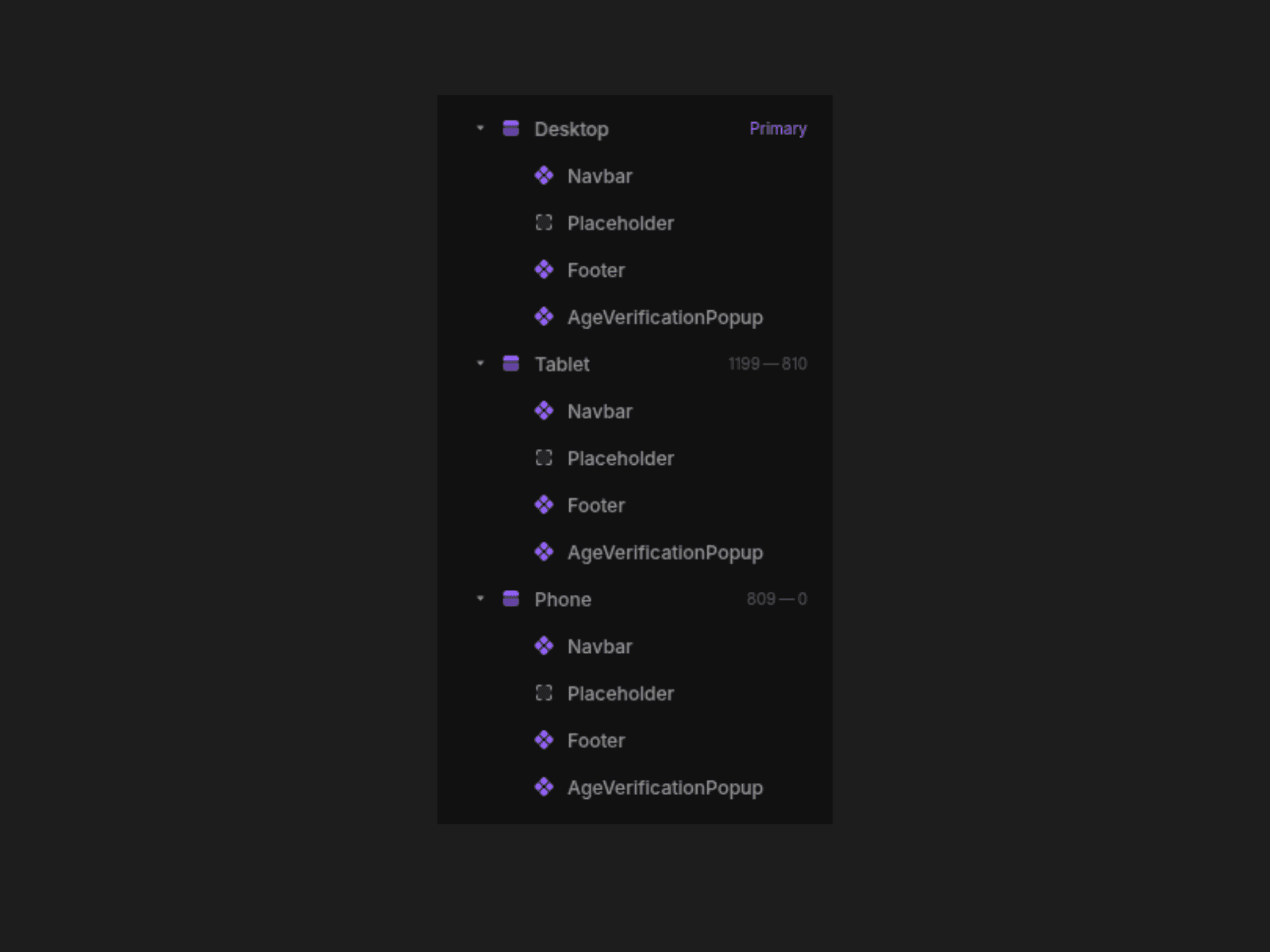
Drag the component onto your Framer canvas. Get the Component .Ensure this component is added outside of your main content so the pop-up can overlay the page correctly. You can add it in the Template page (next to the navigation and the footer )
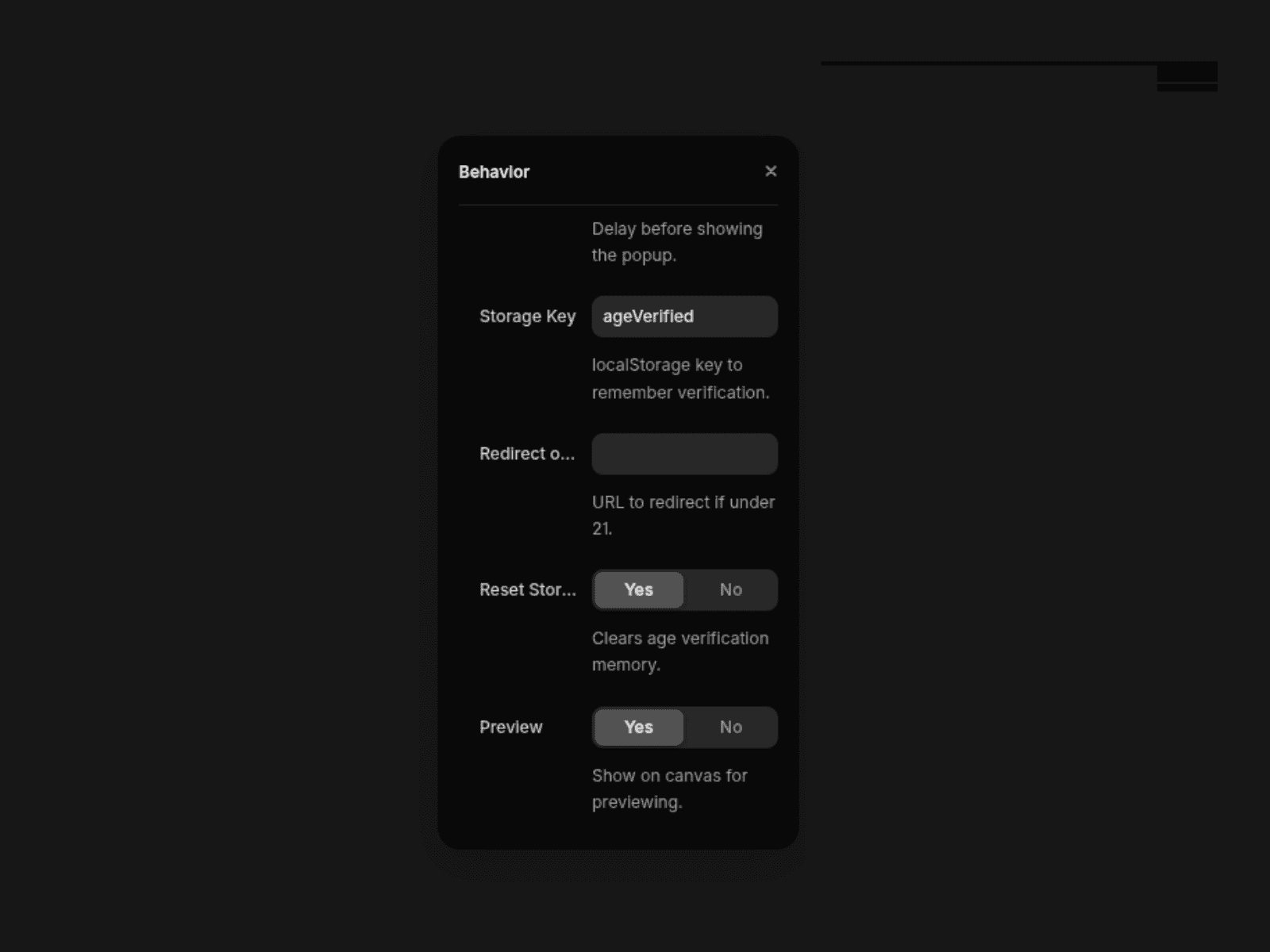
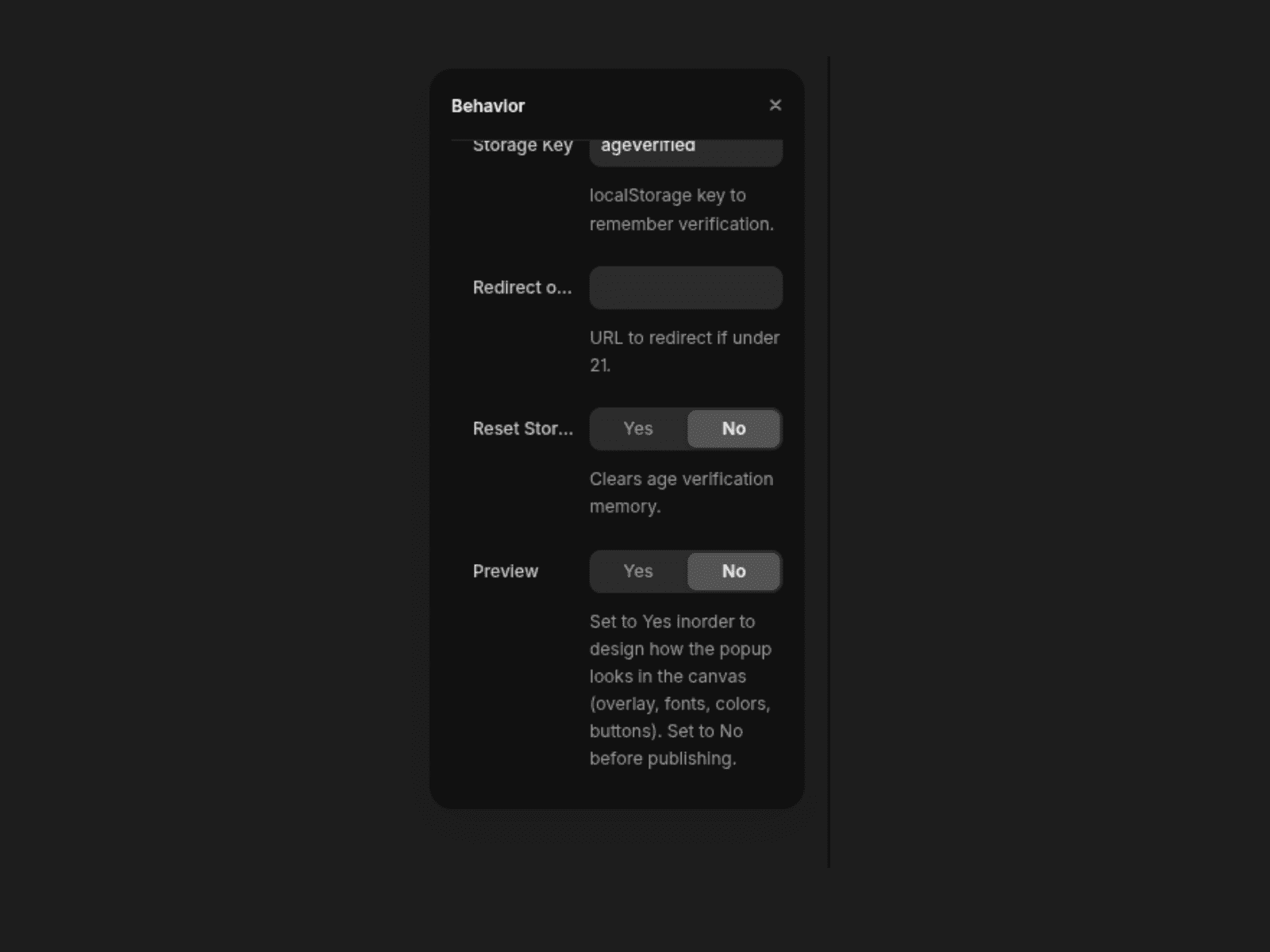
In the behaviiour section, turn Preview ON to design and style the pop-up
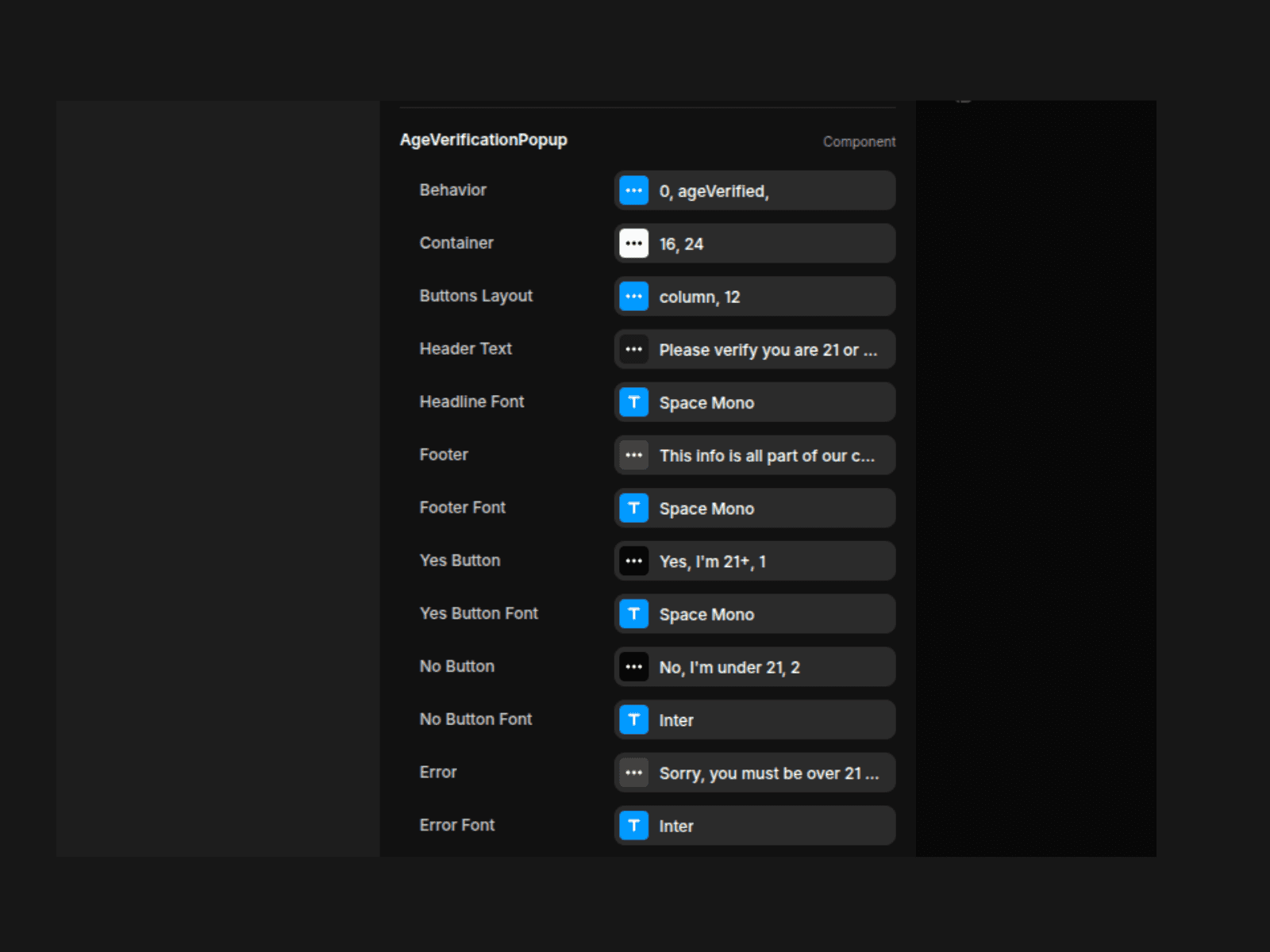
Customize text, fonts, colors, spacing, overlay, and button layout. Buttons can be stacked horizontally or vertically
Set your desired delay , you can set it to 0 if you want it to appear immediatley, set 1 to appear after 1 second, and so on.
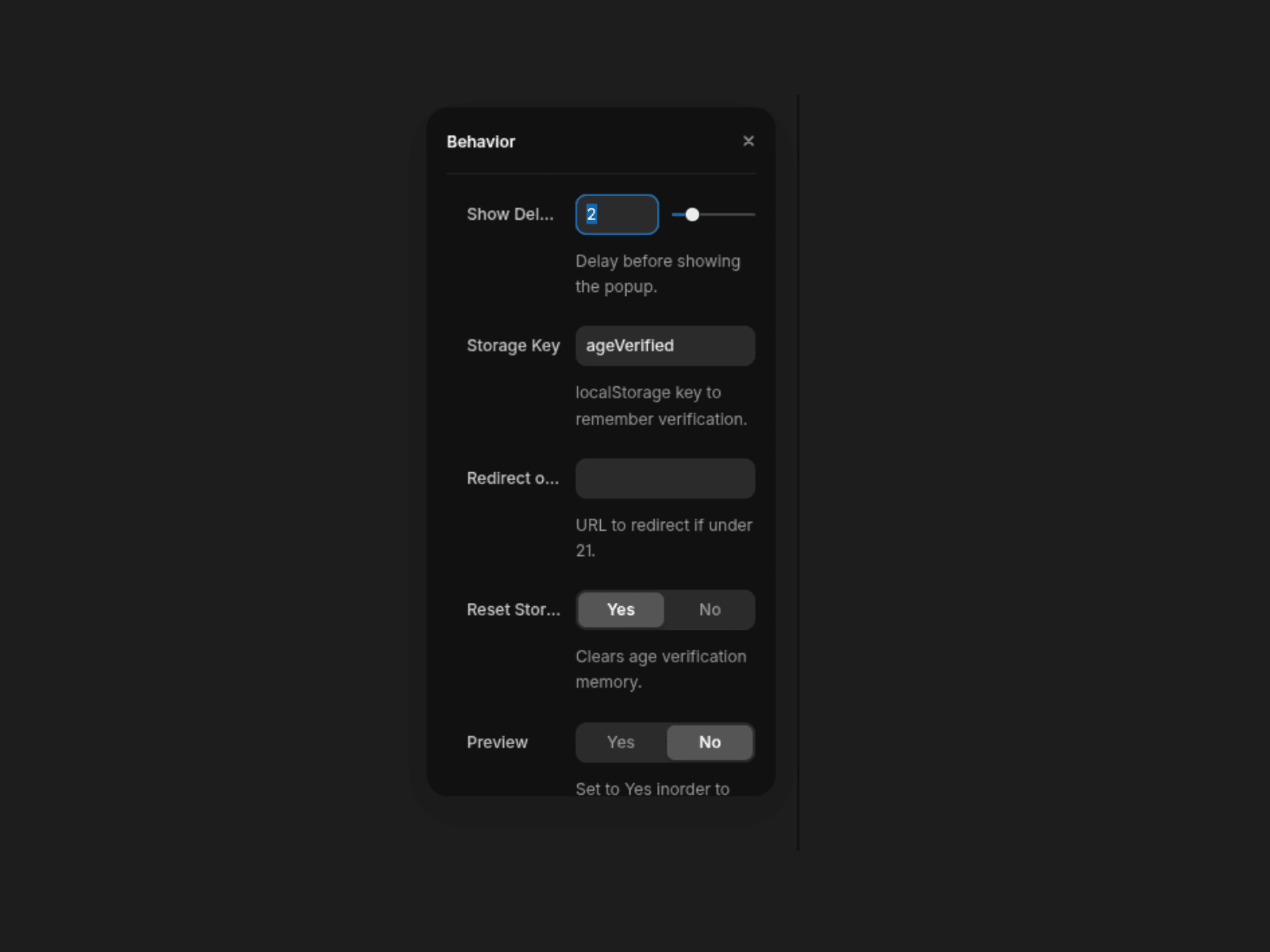
Set Preview to No before previewing or publishing, so the pop-up triggers normally on page load.
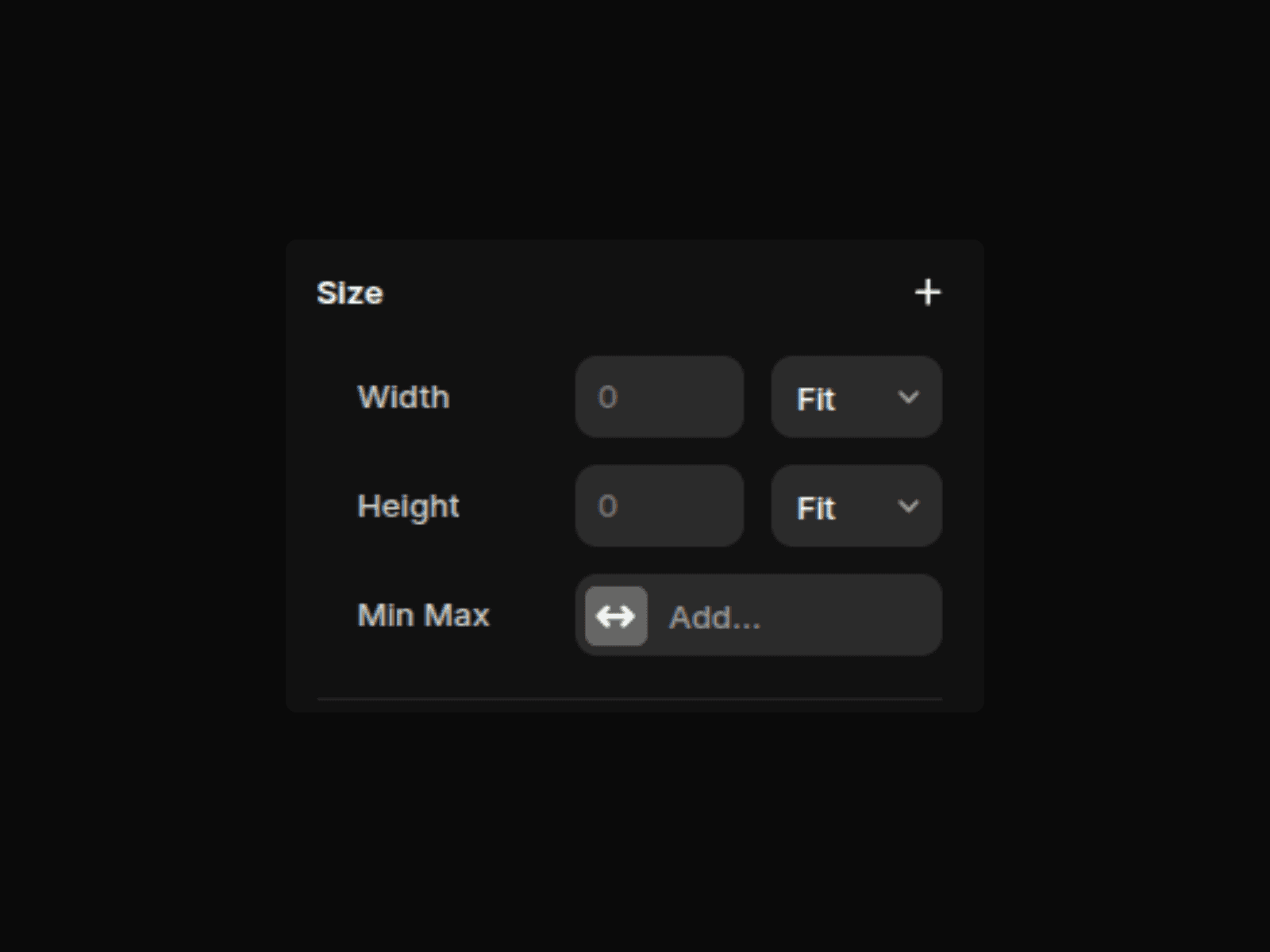
Ensure the component has 0 width and 0 height before publishing.
Publish your site.
⚠️ Important
• Preview is for styling only.Use Preview = Yes to design how the pop-up looks in the canvas. Before previeweing/ publishing, set Preview = No so the pop-up runs with real behavior on page load.
• Reset Storage is for testing only.Reset Storage is enabled by default, so saved age verification in localStorage doesn’t hide the pop-up during testing . Before going live, set Reset Storage = No so returning visitors aren’t prompted again.
Make sure this component is added outside of your main content so the pop-up can overlay the page correctly.
You can preview the component here